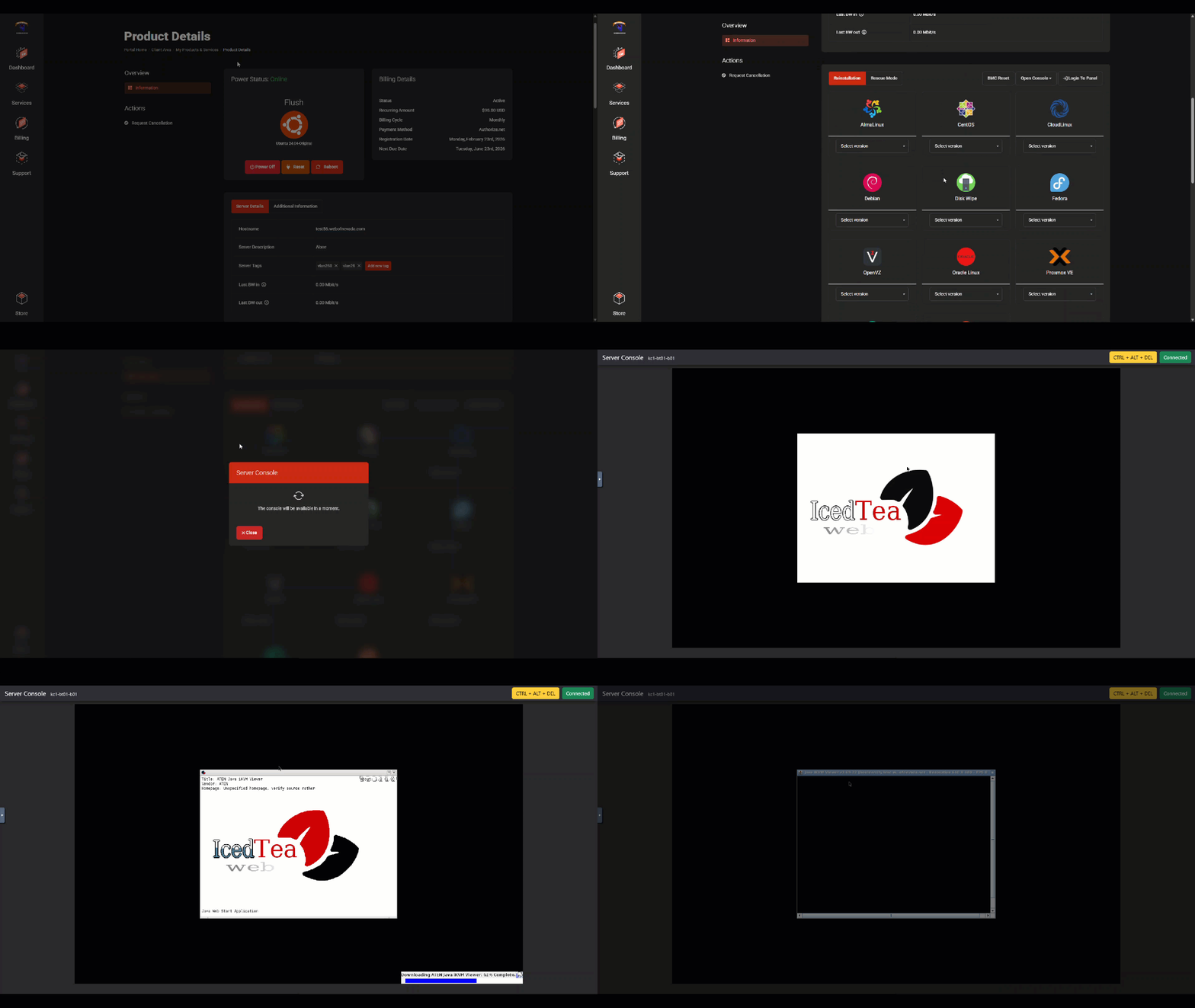






IPMI (Intelligent Platform Management Interface) gives you out-of-band access to your dedicated server, independent of the operating system. This means you can reboot, reinstall, or troubleshoot your server even if it is completely unresponsive.
What IPMI Lets You Do
- Power on, off, or cycle your server
- Access a remote console (KVM over IP) to see the screen and use the keyboard
Accessing IPMI
IPMI access credentials and the IPMI IP address are provided in your welcome email. To access the IPMI web interface:
- Open a browser and navigate to your IPMI IP address (e.g.,
https://192.168.x.x). - Accept the self-signed SSL certificate warning.
- Log in with the IPMI credentials from your welcome email.
Remote Console (KVM)
From the IPMI interface, look for Remote Control or KVM Console. This launches a Java or HTML5 viewer that gives you full keyboard and video access to the server.
Need IPMI Access Set Up?
If your welcome email did not include IPMI details, open a support ticket and we will provide the credentials and ensure IPMI is accessible.